

YouTube Android Player API and YouTubePlayerView Example
The YouTube Player API for Android provides a ready to use a fragment and an embedded view to play YouTube videos. The API provides methods to customize and control the video playback. You can play, pause, or seek video to specific play time
July 1, 2016 · 19 min read · Updated Sep 2025
The YouTube Player API for Android provides a ready to use a fragment and an embedded view to play YouTube videos. The API provides methods to customize and control the video playback. You can play, pause, or seek video to specific play time. The API also provides the helper functions to support orientation changes as well as transitions to full-screen playback.
This tutorial demonstrates how to use YouTubePlayerView and YouTubePlayerFragement in Android to play YouTube videos.
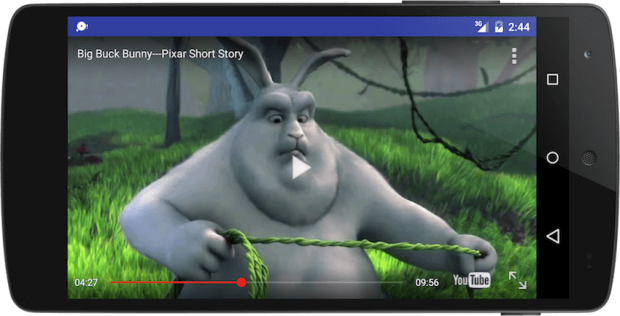
Note: Users need to run version 4.2.16 of the mobile YouTube app (or higher) to use the YouTube Android Player API.
Integrating YouTube Player API in your Android application involves tharee key steps:
- Download and Configure YouTube Android Player API in Android Studio
- Register your Application in Google Developer Console and obtain Android API key
- Integrating YouTube Android Player API in your Android Application
Download YouTube Android Player API
The YouTube Android Player API is currently not supported via Gradle dependency. You need to download it from the official download source and add it to your project manually.
Download YouTube Player API from developer.google.com.
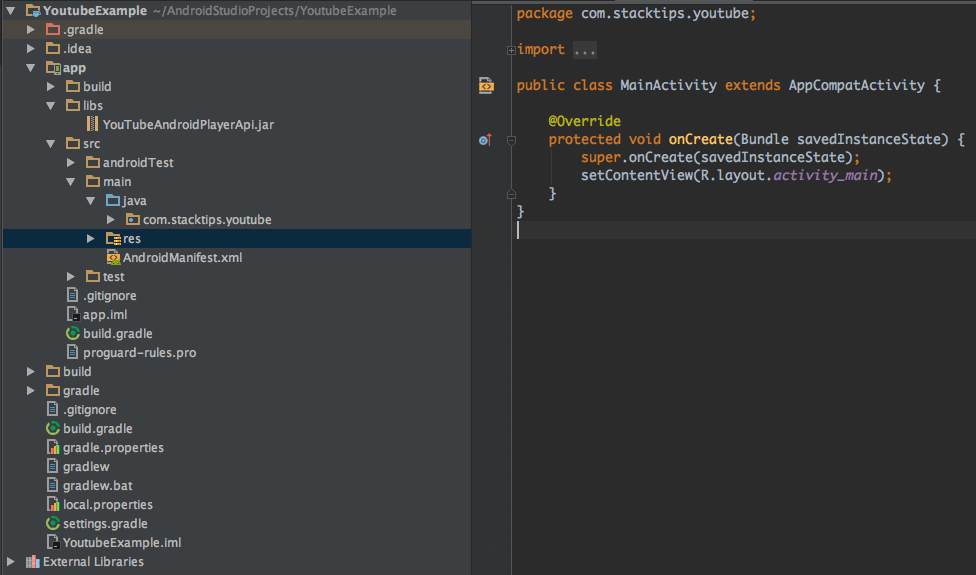
Once your download is completed, extract the bundle. You will notice several directories including docs, libs, and sample. Now copy YouTubeAndroidPlayerApi.jar file and paste it into your Android Studio project libs directory.
The following image depicts the project structure after YouTubeAndroidPlayerApi.jar is added to the project.
Now that the library is added, just make sure you have the following declaration in your app build.gradle file.
dependencies {
    compile fileTree(dir: 'libs', include: ['*.jar'])
    //... other dependencies
}Now select Tools > Android > “Sync Project with Gradle Files” option on Android Studio menu to sync project after adding jar file.
Register in Google Dev Console
For using Youtube Player API in your Android application, you need to register your application in Google Developers Console and obtain an Android API key.
Please note, the API key is a unique value for your application. Do not disclose this to others.
The following steps explain how to register your application in the Google Developer Console and get your application’s authorization credentials.
- Visit Google Developers Console. If you’re not logged already, you will be asked to login with your Google Mail account.
- Select a project, or create a new one.
- In the sidebar on the left, expand APIs & auth. Next, click APIs. In the list of APIs, make sure the status is Enabled for the YouTube Data API v3.
- In the sidebar on the left, select Credentials > Add Credential.
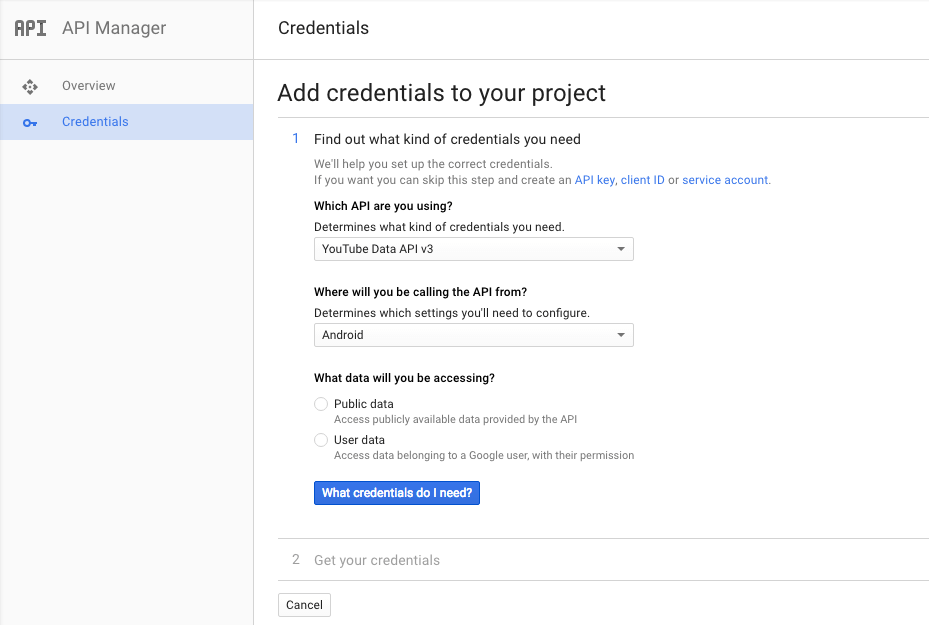
- Select “Android” and “Public data option and follow the screen instruction to create your API Credentials.
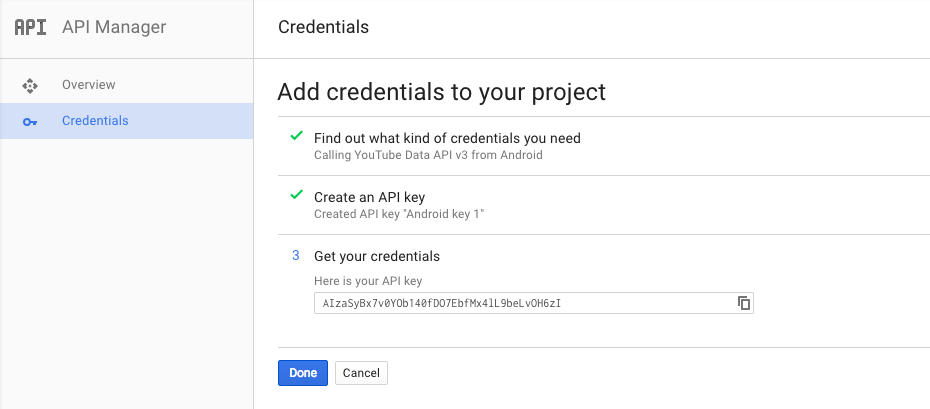
Now copy your API credentials. You need it from your Android code.
YouTubePlayerView Android Example
Now that we are ready with the basic configurations, we can start using the YouTube Player API in our application. The API offers two methods to integrate and play embedded YouTube video in Android; YouTubePlayerView or YouTubePlayerFragment. Let us first see how to integrate YouTubePlayerView.
YouTubePlayerView takes care of Android Configuration Change events. It saves and restore the state of the YouTubePlayer associated with the view as part of the onSaveInstanceState/onRestoreInstanceState.
Add YouTubePlayerView to View Hierarchy
Let us first add the YouTubePlayerView view in your activity or fragment view hierarchy.
<?xml version="1.0" encoding="utf-8"?>
<LinearLayout xmlns:android="http://schemas.android.com/apk/res/android"
   xmlns:tools="http://schemas.android.com/tools"
   android:layout_width="match_parent"
   android:layout_height="match_parent"
   android:orientation="vertical"
   tools:context="com.stacktips.youtube.MainActivity">

   <com.google.android.youtube.player.YouTubePlayerView
       android:id="@+id/youtube_player_view"
       android:layout_width="match_parent"
       android:layout_height="wrap_content"/>
</LinearLayout>Add INTERNET Permission
INTERNET permission is required to play video over internet. Add the following permission in your application AndroidManifest.xml file.
<uses-permission android:name="android.permission.INTERNET" />Initialize YouTubePlayerView
When using YouTubePlayerView, your activity needs to extend [YouTubeBaseActivity](https://developers.google.com/youtube/android/player/reference/com/google/android/youtube/player/YouTubeBaseActivity.html). Now let us create an Activity that extends YouTubeBaseActivity and initialize the YouTubePlayerView.
Once the initialization is successful, you will get the onInitializationSuccess() callback with YouTubePlayerView instance. You can add additional listeners to handle the playback control events.
public class MainActivity extends YouTubeBaseActivity implements OnInitializedListener {
    public static final String API_KEY = "YOUR_API_KEY";

    //https://www.youtube.com/watch?v=<VIDEO_ID>
    public static final String VIDEO_ID = "-m3V8w_7vhk";

    @Override
    protected void onCreate(Bundle savedInstanceState) {
        super.onCreate(savedInstanceState);
        // attaching layout xml
        setContentView(R.layout.activity_main);

        // Initializing YouTube player view
        YouTubePlayerView youTubePlayerView = (YouTubePlayerView) findViewById(R.id.youtube_player_view);
        youTubePlayerView.initialize(API_KEY, this);
    }

    @Override
    public void onInitializationFailure(Provider provider, YouTubeInitializationResult result) {
        Toast.makeText(this, "Failed to initialize.", Toast.LENGTH_LONG).show();
    }

    @Override
    public void onInitializationSuccess(Provider provider, YouTubePlayer player, boolean wasRestored) {
if(null== player) return;

        // Start buffering
        if (!wasRestored) {
            player.cueVideo(VIDEO_ID);
        }
    }
}In the above code snippet, we are calling initialize(String, OnInitializedListener) method on YouTubePlayerView to instantiate YouTubePlayer. Ones YouTubePlayer instance is ready, it can be used to to load videos into this YouTubePlayerView. You may now build and run the app now to see the YouTube player in action.
4.4. Handling YouTubePlayer Events
You may attach PlaybackEventListener or PlayerStateChangeListener listeners to player instance for error handling or advanced configurations.
// Add listeners to YouTubePlayer instance
player.setPlayerStateChangeListener(new PlayerStateChangeListener() {
    @Override
    public void onAdStarted() { }

    @Override
    public void onError(ErrorReason arg0) { }

    @Override
    public void onLoaded(String arg0) { }

    @Override
    public void onLoading() { }

    @Override
    public void onVideoEnded() { }

    @Override
    public void onVideoStarted() { }
});

player.setPlaybackEventListener(new PlaybackEventListener() {
    @Override
    public void onBuffering(boolean arg0) { }

    @Override
    public void onPaused() { }

    @Override
    public void onPlaying() { }

    @Override
    public void onSeekTo(int arg0) { }

    @Override
    public void onStopped() { }
});5. Customising YouTubePlayer Controls
The YouTube Android Player allows you to customize the playback control by setting one of the style defined in YouTubePlayer.PlayerStyle enumeration. It currently support three styles DEFAULT, MINIMAL or CHROMELESS;
- YouTubePlayer.PlayerStyle.DEFAULT – The default style, showing all interactive player controls.
- YouTubePlayer.PlayerStyle.MINIMAL – The minimal style displays only a time bar and play/pause controls.
- YouTubePlayer.PlayerStyle.CHROMELESS – A style that shows no interactive player controls. When you use CHROMELESS, you need to write your own controls for play, pause or seek operation.
You can apply style to YouTubePlayer by calling setPlayerStyle(PlayerStyle style) method.
player.setPlayerStyle(PlayerStyle.CHROMELESS);Checkout our Part-II tutorial to learn more about how to customise YouTubePlayer by adding your own custom playback controls.
6. YouTubePlayerFragment Example
Integrating YouTubePlayerFragment is relatively easy. The following section demonstrates how to use YouTubePlayerFragment.
Let us declare the Activity layout where the YouTubePlayerFragment will be added.
activity_youtube_player_fragment.xml
<?xml version="1.0" encoding="utf-8"?>
<FrameLayout xmlns:android="http://schemas.android.com/apk/res/android"
    android:id="@+id/content"
    android:layout_width="match_parent"
    android:layout_height="match_parent">
</FrameLayout>Now let us create an activity and extend it form YouTubeBaseActivity. We will now create an instance of YouTubePlayerFragment and add the fragment to activity.
YouTubePlayerFragmentActivity.java
public class YouTubePlayerFragmentActivity extends YouTubeBaseActivity {
    public static final String API_KEY = "AIzaSyBx7v0YOb1404fDO7EbfMx4l87raxezDWFw";

    //https://www.youtube.com/watch?v=<VIDEO_ID>
    public static final String VIDEO_ID = "-m3V8w_7vhk";

    @Override
    protected void onCreate(@Nullable Bundle savedInstanceState) {
        super.onCreate(savedInstanceState);
        setContentView(R.layout.activity_youtube_player_fragment);

        //Initializing and adding YouTubePlayerFragment
        FragmentManager fm = getFragmentManager();
        String tag = YouTubePlayerFragment.class.getSimpleName();
        YouTubePlayerFragment playerFragment = (YouTubePlayerFragment) fm.findFragmentByTag(tag);
        if (playerFragment == null) {
            FragmentTransaction ft = fm.beginTransaction();
            playerFragment = YouTubePlayerFragment.newInstance();
            ft.add(android.R.id.content, playerFragment, tag);
            ft.commit();
        }

        playerFragment.initialize(API_KEY, new YouTubePlayer.OnInitializedListener() {
            @Override
            public void onInitializationSuccess(YouTubePlayer.Provider provider, YouTubePlayer youTubePlayer, boolean b) {
                youTubePlayer.cueVideo(VIDEO_ID);
            }

            @Override
            public void onInitializationFailure(YouTubePlayer.Provider provider, YouTubeInitializationResult youTubeInitializationResult) {
                Toast.makeText(YouTubePlayerFragmentActivity.this, "Error while initializing YouTubePlayer.", Toast.LENGTH_SHORT).show();
            }
        });
    }
}Notice that, the player initialization process is remains same. You still have to call initialize() method to get your YouTubePlayer instance.
Get the Source code
github.com/StackTipsLab/android-ui-tutorials/tree/master/android-youtube-playerview-demo